

AnonFiles on Synology: what the older installation guide requires
Understand the older AnonUpload recipe for Synology, its unresolved folder permissions, and the checks needed before an optional local trial.
Eugene Gavrilov
9 min read- NAS & storage
Want a simple page for uploading a file to your NAS? The older AnonUpload recipe describes that use, but a first installation has an unresolved folder-permission requirement. This guide explains the stopping point and a bounded local trial for readers who can resolve it. This is the self-hosted project by Supernova3339; installing it does not give you an account at anonfiles.com. See upstream AnonUpload project.
The official package listing lists version 1 as published over three years ago. The current source Dockerfile uses PHP 7.4, whose upstream support ended in 2022. Treat this as an optional historical local trial, without a claim of current support.
The current source may differ from the published image. We have not pulled or run that image, verified its processor support, or tested it on a physical Synology NAS; the steps combine the original recipe and cited documentation.
What you need
Sign in to DSM, the NAS's browser-based desktop, with an account allowed to install packages and manage the trial folder. In Package Center, look for Container Manager. Continue only if Synology offers it for your NAS and installed DSM version. Package availability does not establish that this particular image supports your NAS processor. If you only have the older Docker package, this graphical Project route does not apply. Do not install a random package from another model. See Synology release notes.
Use a computer on your trusted home network. Have a tiny disposable .txt file ready; do not upload personal documents. Keep the original file on your computer. No router port forwarding, public domain or certificate is needed for the local trial described here. A local HTTP connection is unencrypted, so use a unique throwaway admin password.
An image is the packaged application; a container is a running instance. The port identifies its network entrance. This trial uses NAS port 9840 and container port 80. A bind mount connects a real NAS folder to the application's files directory so uploads are stored outside the container. Environment variables provide settings such as the admin email and password. The container runs the app; the separate NAS folder holds uploads. Restarting the app and checking the file afterward is how you check this arrangement in your own trial.
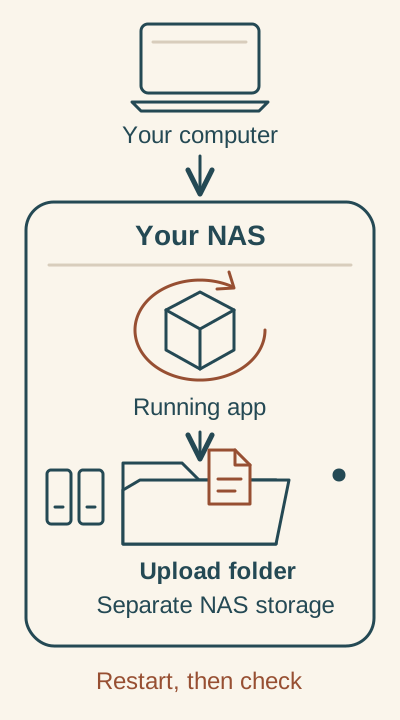
The app and its upload folder are separate. This conceptual map does not confirm the published image’s behavior; resolve folder permissions before trying it.
The container runs the app. A bind mount connects it to a separate upload folder on the NAS. Resolve folder write access first; restart and check the sample file yourself.
Prepare a separate folder, then check permissions
In File Station, open the docker shared folder if you already have one and create an anonfiles folder, following the original guide's folder choice. If that shared folder does not exist, stop and have your NAS administrator establish a dedicated trial location before continuing. The sample below assumes its full path is /volume1/docker/anonfiles. If your shared folder is on another volume, replace the path with its actual location. Never point this trial at a photo library or another application's folder.
The application needs permission to write uploaded files there. The old guide grants Everyone read/write and runs the container as 0:0; do not treat that as a narrowly scoped permissions solution. The current source copies application files with ownership 33:33, but that does not establish the identity used for writes by the published image. The available evidence does not establish which account the container uses to write files or how to grant that account folder permissions on Synology. See original recipe, source Dockerfile.
Stop here unless you or your NAS administrator can identify the account the container uses to write files and grant it access to this dedicated folder. Do not grant Everyone access or make unrelated shared folders writable to get past an upload error. This is the point where the available documentation limits a first-time installation. The following steps are an optional historical trial for readers who have resolved that permission requirement.
Create the trial in Container Manager
Open Container Manager → Project → Create. Set the project name to anonfiles-trial. Set Path to the dedicated folder you created. Under Source, choose the option to create a docker-compose.yml using the editor. Synology documents these project fields; wording can vary with package version. See Synology Project help.
The configuration uses these illustrative values. Replace them before starting:
- Upload folder:
/volume1/docker/anonfiles. Use the full path of your dedicated trial folder. - Local NAS address:
192.168.1.50. Ask your NAS administrator for the actual local address if you do not know it. Use that address in bothAPP_BASE_URLand your browser, without DSM's management port such as:5001. - Admin and contact email:
[email protected]. This is an example identity, not a supplied mailbox; enter your own email in both fields. - Password:
Trial-only-7mQ4k9V2. This is public example text. Choose your own unique trial password.
Paste the following into the project editor, then make those replacements.
services:
  anonfiles:
    image: ghcr.io/supernova3339/anonfiles:1
    ports:
      - "9840:80"
    volumes:
      - /volume1/docker/anonfiles:/var/www/html/files:rw
    environment:
      ADMIN_EMAIL: "[email protected]"
      ADMIN_PASSWORD: "Trial-only-7mQ4k9V2"
      APP_NAME: "Local AnonUpload trial"
      APP_DESC: "Disposable local file upload trial"
      APP_FILELIST: "txt"
      APP_SIZE_VERIFICATION: "true"
      APP_FILE_DESTINATION: "files"
      APP_BASE_URL: "http://192.168.1.50:9840"
      APP_MAX_SIZE: "1000000"
      APP_MIN_SIZE: "0"
      APP_CONTACT_EMAIL: "[email protected]"
      APP_DOWNLOAD_TIME: "3"
    restart: "no"
The mount /volume1/docker/anonfiles:/var/www/html/files:rw has three parts: your NAS folder on the left, the application's files directory on the right, and rw for read/write access. That access mode does not grant the missing NAS folder permissions; resolve the earlier stop gate first. restart: "no" means no automatic restart. No user: 0:0 override is supplied, which does not prove the image runs without root privileges. See the files mount reference and Docker bind mounts.
The environment reference describes these keys. The examples are trial choices, not verified image defaults; the current source may differ from the published image. See also the upload implementation and download implementation.
ADMIN_EMAIL
Admin login email. Replace the example with your email.
ADMIN_PASSWORD
Admin login password. Replace the public example with a unique trial password.
APP_NAME
Name used in the browser page title: “Local AnonUpload trial.”
APP_DESC
Description used in the browser page title: “Disposable local file upload trial.”
APP_FILELIST
Allowed filename extensions: txt. This checks extensions, not file contents.
APP_SIZE_VERIFICATION
Upload-size checking: true enables the check. Keep this value for the trial.
APP_FILE_DESTINATION
Upload destination folder: files, corresponding to the documented files mount. Keep this value.
APP_BASE_URL
Application address: replace only the illustrative NAS address, keeping the chosen NAS port consistent.
APP_MAX_SIZE
Upper upload-size threshold in bytes: 1000000. Current source checks for files strictly smaller than this value.
APP_MIN_SIZE
Lower upload-size threshold in bytes: 0. Current source requires files larger than this value, so use a nonempty sample.
APP_CONTACT_EMAIL
Address in the file-report link. Replace it with your email; this is separate from login and does not configure email delivery.
APP_DOWNLOAD_TIME
Download-page countdown in seconds, here 3; this is not file expiry or a guaranteed precise delay.
The web server and PHP can impose further limits; the application thresholds do not establish actual upload capacity. Keep the small disposable sample.
9840:80 publishes the service through the NAS; it is not restricted to your computer. Keep the NAS on a trusted private network, and do not create a reverse-proxy entry or router forwarding rule. Save the project configuration privately: the password is written into the YAML and passed to the container as an environment setting. See Docker port publishing.
Do not enable the optional Web Station portal for this trial. Review the summary, click Done, and choose to start the project. If image retrieval fails, save the error and stop. A package listing is not proof that the image can be pulled today. If the error says there is no matching manifest or executable format, do not force an unrelated architecture or image.
Open it locally and check the result
These are checks for you to perform, not results of a completed NAS test:
- Open the page. On the same network, open the address entered in
APP_BASE_URL:http://192.168.1.50:9840in the illustrative setup. Do not enterlocalhoston your computer; that refers to the computer, not the NAS. This published image's local behavior remains unverified. - Upload and download a sample. Select the tiny
.txtfile and click Upload. Follow the returned download link and check that the downloaded file matches your original. The selector, button and success link are supported by the source. - Find the stored file. Open your dedicated
docker/anonfilesfolder in File Station and locate the upload. The current source adds a random prefix while retaining the original filename, so use a disposable file with a non-sensitive name. - Restart and check again. In Container Manager → Project, select
anonfiles-trialand choose Action → Restart. Reopen the download link, sign in again if needed, and check that the sample is still downloadable and visible in File Station. This checks an existing container; it does not prove recreation preserves all configuration. See Synology Project actions.
Open /admin/ after the same local address, for example http://192.168.1.50:9840/admin/ in the illustrative setup. The original guide documents this address and login using the configured email and password. If the screen requests an unexpected installer or purchase code, stop rather than entering credentials into a different setup flow. The repository also contains an installer that writes configuration outside the documented files mount; it is not part of this environment-based procedure.
Save and remove the trial
Keep a private copy of the project YAML and a separate copy of any files you decide to retain. In the visible source, admin credentials come from environment settings; the files folder alone is not a credential backup. Installer-created system/config.php would also be outside this files mount. No complete restore has been verified. See configuration source, installer source.
When finished, choose Action → Stop for the project. For removal, first copy anything you want to keep to a different folder. Synology describes Delete as deleting containers and project data, and Clean also removes resources: neither is a backup operation. Read the confirmation before accepting it. Delete the dedicated trial folder in File Station only after checking your separate copy. See Synology removal documentation.
Do not update blindly to latest or another tag. Version 1 is a tag, not an immutable version guarantee. Revisit the upstream package, release and runtime evidence before considering a longer deployment. This guide does not provide a tested update or rollback procedure.
If something fails
- Image cannot be downloaded: save the exact error. A DNS/network problem, access problem and missing image are different possibilities; none was confirmed by our research. Stop rather than replacing the image with a similarly named project.
- Port already in use: stop the trial. Choose an unused NAS port, then change both the left side of the port mapping and the port in
APP_BASE_URLand your browser address together. Do not change the container's port 80. - Page opens but uploads fail: try only the small
.txtsample. Check free space, allowed extension, configured byte limit and the dedicated folder's write access. Do not respond by granting Everyone permissions. - Files disappear after recreation or admin settings reset: stop and retain your original files and YAML. The documented files mount is not a promise that every setting is persistent.
For help, use the upstream repository and Synology's project documentation. Include your DSM/package versions, NAS model, image tag and exact error; remove passwords and personal file names from logs and configuration first.