

Install Audiobookshelf on a UGREEN NAS and add your first book
Install Audiobookshelf through UGREEN Docker Project, add a first audiobook, check persistence after restart, and protect your folders before updates or removal.
Eugene Gavrilov
11 min read- NAS & storage
Turn your audiobook files into a library you can open from a computer on your home network. Audiobookshelf is a personal audiobook server. This guide takes you through installation, first playback and a restart check, then shows which folders to protect before updating or removing the app.
The procedure follows documentation retrieved on 4 November 2026 and uses Audiobookshelf 2.37.2. It has not been run on a physical NAS for this article. You will perform the playback and persistence checks yourself.
Before you begin
You need a UGREEN NAS with Docker available in UGOS, an administrator login, writable local storage, an internet connection for downloading the app, and a computer on the same trusted home network. Have one audiobook MP3 ready for the first check. UGREEN documents Docker for supported DXP models and the DH4300 Plus; its guide excludes the DH2300. Check your exact model against UGREEN's Docker support guide rather than assuming every UGREEN NAS can follow these steps. Record your model and installed UGOS/Docker versions for support. If you cannot identify them in your NAS information, contact UGREEN Technical Support before proceeding; this guide does not assume a model-information menu that is the same on every UGOS version.
This guide uses UGREEN's native Docker Project interface. An image is the packaged app that Docker downloads. A container is its running instance. A Compose file describes the image, folders and network port; you will paste it into a graphical editor.
Keep this first setup on your trusted home network. Do not add router port forwarding or public access. The port setting below publishes the app on the NAS's network addresses; it does not itself restrict access to your LAN. Your router, firewall and network configuration determine who can reach it; see Docker's port-publishing explanation.
1. Install Docker and prepare the folders
Sign in to UGOS and open App Center. Find Docker, choose Install, select storage when asked, and complete installation. Open Docker when it is ready. If it is already installed, open the existing app. If Docker is unavailable, check support for your NAS model before continuing.
Open Files, UGREEN's file manager, and locate the Docker shared directory. Create one folder named audiobookshelf. This will be the Project storage folder you select in Docker. Inside it, create three separate sibling folders: config, metadata and audiobooks. These names are the layout used in this guide. Keep the folder on this NAS's local storage: Audiobookshelf requires local storage for /config.
Inside audiobooks, create a folder named Sample Book and copy your sample MP3 into it. Follow the book-folder guidance: keep each title in its own folder; for a book with several audio tracks, keep those tracks together in that title's folder.
The table below uses relative paths. The ./ means “inside the Project storage folder you select.” You will choose your audiobookshelf folder in a graphical picker, so you do not need to discover or type a Linux absolute path.
| Folder inside the selected Project folder | Compose path on the NAS side | Location seen by Audiobookshelf | What it holds |
|---|---|---|---|
config | ./config | /config | App configuration and SQLite database |
metadata | ./metadata | /metadata | Metadata, images, logs and app backups |
audiobooks | ./audiobooks | /audiobooks | Your audiobook files |
Each row is a folder mapping: the app sees an existing NAS folder at the corresponding path inside its container. The two names do not describe two separate copies. The Audiobookshelf Docker instructions explain these storage roles.
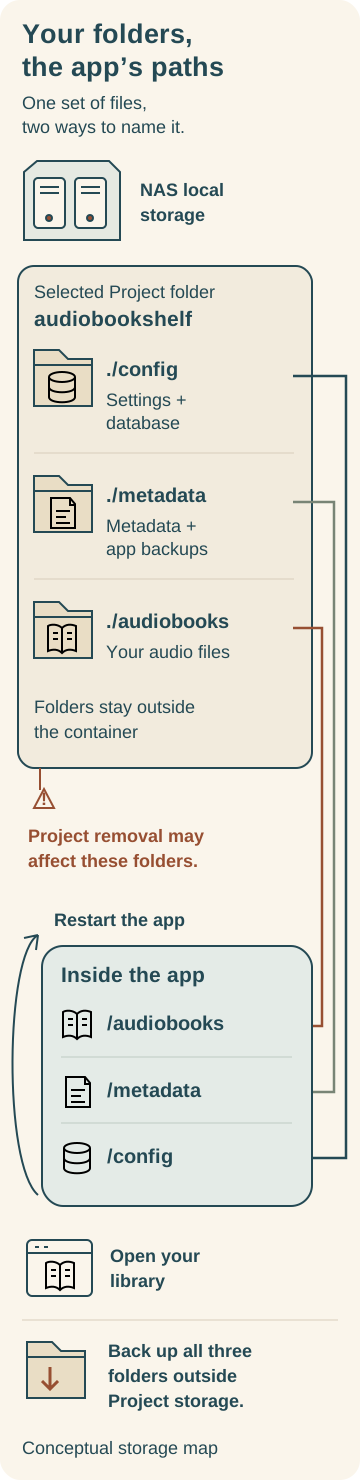
Each pair names one mapped folder. Restarting the container checks persistence; removing the Project may affect its stored folders. Back up all three outside Project storage first.
Check your account's access. Creating the folders and uploading the sample shows that your logged-in NAS account can write there. If Files denies access, the UGREEN Files guide documents Files > Management: select the relevant shared folder, choose Edit > Permissions, and check Read/Write for your intended individual account or group. Do not grant everyone access. These instructions apply to UGOS Pro 1.11.0.0002 and above; interfaces may differ. If that route is unavailable, use UGREEN support rather than guessing permission settings.
Account permissions do not prove that the app can write. After deployment, you will check container Log, app-created data and the restart result to establish whether the app can use these folders.
Protect this folder before removing the Project. With relative mappings, the data lives inside Project storage. Removing the Project or its storage can affect all three folders, including your audiobook files. Later sections explain how to back them up elsewhere first.
2. Create the Audiobookshelf project
Open Docker > Project > Create. Name the project audiobookshelf and use the folder picker to select the audiobookshelf folder you prepared as its storage path. Check that its three child folders are config, metadata and audiobooks. In the Compose editor, paste the configuration below.
Keep the three relative folder mappings as shown. Docker resolves their left-hand paths from the selected Project storage folder. The right-hand paths are the locations Audiobookshelf sees inside the container. Selecting a different Project folder later would point the app at different data.
services:
  audiobookshelf:
    image: ghcr.io/advplyr/audiobookshelf:2.37.2
    ports:
      - "13378:80"
    volumes:
      - ./config:/config
      - ./metadata:/metadata
      - ./audiobooks:/audiobooks
    restart: unless-stopped
The image line selects the official documented image with a fixed version number. Version 2.37.2 was the release observed during research; pinning it makes the chosen version explicit.
The ports line connects port 13378 on the NAS to port 80 inside the container. If another service already uses 13378, choose an unused NAS port, such as 13379, and change only the left number to 13379:80. Use your chosen number in the browser later.
The volumes lines connect the three folders from the table. The restart: unless-stopped setting lets Docker restart the app after a failure or Docker restart, while respecting a deliberate manual stop. A manually stopped container needs to be started again, as described in Docker's restart-policy documentation.
Choose Deploy. Allow the image download and container creation to finish, then open Docker > Container and find the container for this project. Check that it is running. If it stops or reports an error, inspect Log before proceeding. A completed deployment alone does not establish that playback works.
3. Understand the address, then open the app
You need your NAS's local IP address: the numeric address identifying it on your network. Find it in your existing NAS connection information or your router's device list. A hostname or domain is a name used to reach an address; you do not need to buy or configure one for this direct local connection. The port chooses the service running at that address.
For example, if your NAS address were 192.168.1.50 and you kept port 13378, the browser address would be:
http://192.168.1.50:13378
This is an illustrative address. Replace 192.168.1.50 with your own NAS IP and use the NAS port from your Compose file. Open that address from a computer on the same home network.
http:// means this connection is unencrypted. HTTPS adds encrypted transport; configuring it is outside this local installation. An HTTPS login for the NAS management page does not change this separate app's HTTP connection.
On your first visit, create the root administrator username and password. Save a strong, unique password securely. There are no default credentials to look up; the server FAQ explains first-run account creation.
4. Add one book and play it
Create a library with media type Books and folder /audiobooks. Use the container-visible folder, rather than ./audiobooks or the Project storage folder name.
The following labels come from the supplied September 2026 version of this walkthrough and may differ in version 2.37.2. Open Libraries > Add your first library, choose Books, enter a library name, then Browse for Folder > audiobooks > Select Folder Path > Create. Run Scan after copying the sample file. If the controls have moved, look for the library settings with media type Books and folder /audiobooks.
Open the sample title and press play. Confirm you hear the book, then pause and note the playback position. This is your first functional check. If the title is missing or will not play, use the checklist below before adding the rest of your collection.
5. Check that the library survives an app restart
In File Manager, confirm the sample remains under audiobookshelf/audiobooks/Sample Book in the Project folder you selected. Check that config and metadata contain app-created data.
In Docker's container controls, stop the project's container and start it again. Reopen the same browser address and sign in if prompted. Check that your account, library and sample title remain, and check the saved playback position. A manual stop requires a manual start under the selected restart policy.
If you see first-run account creation again, stop and inspect the /config mapping before creating another account. A wrong or empty NAS folder can present the app with a different database. This restart check checks persistence; it does not prove that you can restore a backup.
Protect the library before changing it
Make a backup
Save the working Compose text, image tag and the location of your selected Project storage folder. Stop the app, then copy all three sibling folders—config, metadata and audiobooks—to a backup location outside the Project storage folder, together with the saved Compose text. Check that the backup contains all three folders and your sample audio before starting the app again. Keep that backup outside any folder you may remove later. Metadata backups inside the app's own storage do not replace a backup of your audio files.
Stopping the app before a folder-copy backup is a conservative recommendation for this database-backed setup. This article does not claim a completed restore test.
Update deliberately
Read the official release notes for the version you intend to install and make the backup first. Record the old image tag. Edit the project's Compose configuration under Docker > Project, replace 2.37.2 with the chosen documented release tag, then redeploy using the available project controls so Docker pulls the replacement image. Keep the same Project storage folder and all three relative mappings unchanged. A pinned image does not advance automatically when another release appears.
After deployment, check the selected image/version, container status and Log. Repeat login, library and sample-playback checks. If Docker did not pull the intended replacement image, the update has not completed. Exact update-control labels can vary; do not assume a button with an unverified name.
If the upgrade fails, stop the app and preserve the failed state for diagnosis. Recovery may need both the old image and its matching pre-update config and metadata backup, restored while the app is stopped. Keep a copy of all three current data folders before replacement, preserve the same Project storage folder/mappings, and consult release notes or support if unsure. Do not assume an older app can read a database changed by a newer version.
Pause or remove the installation
To pause listening service, stop the container. To uninstall, first stop it and back up all three folders plus the Compose text outside Project storage, as described above. Only then consider removing the project under Docker > Project.
Read the removal dialog and inspect any keep-data or delete-storage options available in your installed version. Do not authorize deletion of data you intend to retain. Project removal may affect these relative data folders; this procedure does not promise that they will survive. If the dialog does not make the effect clear, keep the app stopped and ask UGREEN support before removing the Project.
After removal, check the original folders and retain your separate backup. Delete remaining Project storage only when you deliberately want to erase its accounts, library database, metadata and audiobook files. Checking that backup files exist is not a completed restore test.
If a step fails
| What you see | What to check next |
|---|---|
| Docker is missing from App Center | Verify Docker support for your exact NAS model. The documented exclusion includes DH2300. |
| Deployment fails or the container stops | Open Log. Check the image spelling and version, the selected Project storage folder and its three child folders. For permission errors, use the account-access check in step 1; inspect Log for the app failure. Account Read/Write alone does not prove container access. Ask UGREEN support about the reported access error rather than guessing a Docker user identity or widening permissions. |
| The NAS port is already in use | Change only the left side of 13378:80 to an unused port, redeploy, and use that port in your browser address. |
| The browser cannot connect | Check that the container is running, the NAS IP and NAS-side port are correct, and the computer is on the intended network. Check LAN access in your firewall; opening internet access is not a troubleshooting step for this setup. |
| The library folder is missing or scanning finds no book | Confirm the file is in the audiobooks child of the selected Project folder, the library uses /audiobooks, and you ran Scan after copying it. Keep each title's tracks together in its own folder. |
| A book appears but playback fails | Try the small MP3 sample and note the exact error. Recheck that the sample is in the selected Project folder's audiobooks child, then inspect Log for access errors. The sample is a diagnostic check, not a promise that every audio format will play. |
| Setup or an empty library appears after restarting | Check that Project storage still selects the original audiobookshelf folder and that its config child contains your earlier data. Preserve existing data before attempting recovery from a matching backup. |
For further help, record your NAS model, UGOS and Docker versions, image tag, container status and relevant Log excerpt. Include the exact browser error and a copy of Compose with personal paths redacted. Keep passwords and account tokens out of support posts. These details connect the failure to the deployment you actually have.