

Install BentoPDF on a Synology NAS with Container Manager
Install BentoPDF on your Synology NAS using Container Manager, merge a sample PDF in your browser, and understand HTTPS requirements, updates and removal.
Eugene Gavrilov
7 min read- NAS & storage
If you want to join two PDFs without installing a desktop PDF editor, you can host BentoPDF on your Synology NAS and use it from your browser. The NAS serves the app; your browser processes the documents. This guide takes you through installation and a small merge check that you perform yourself.
Decide which tools you need before starting. You can use a local HTTP address to try a basic PDF task. Word, Excel and PowerPoint conversion also need a secure browser context and cross-origin isolation; opening the dashboard over your NAS's local HTTP address does not meet those requirements. The HTTPS section below explains the additional setup you need.
This procedure follows upstream BentoPDF and Synology documentation. It has not been run on a physical NAS for this article.
Before you install
Check that your NAS supports Synology's Container Manager package. In DSM, your NAS administration website, open Package Center > All Packages, find the compatible package and choose Install. If Container Manager is unavailable, check the official package's supported models before continuing. Availability depends on your NAS; this guide does not establish compatibility for every model.
Use a computer on the same trusted local network as the NAS. Keep this installation local: do not add router port forwarding for it. Publishing a port makes the app reachable; it does not add an account or authentication.
Have the NAS's local IP address ready. An IP address identifies the device you want your browser to contact. In this guide, 192.168.1.50 is only an example; you must substitute your NAS's actual local address. A port is a numbered connection point at that address. We will use NAS port 3183 to reach BentoPDF's internal port 8080.
Understand what you are installing
An image is the packaged application. A container runs that image. A Compose file records the settings used to start it; Synology Container Manager groups this setup as a project.
Your NAS hosts BentoPDF; your browser loads the app and processes the PDF task. This setup alone does not guarantee complete privacy.
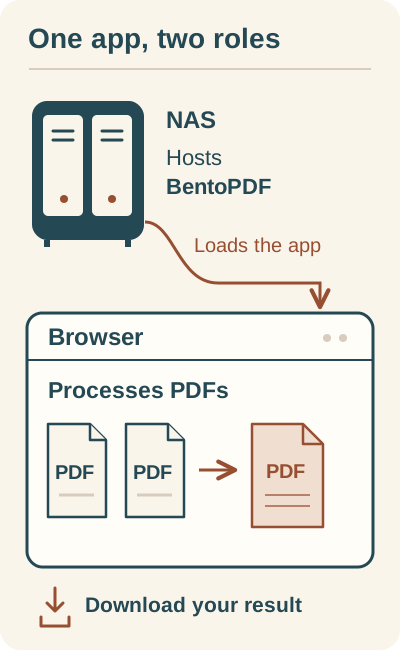
The NAS hosts BentoPDF; your browser processes the PDF task. Download the result to your computer.
The NAS hosts the app. Your browser loads BentoPDF, processes the PDF task and downloads the result to your computer. The project folder is not an automatic PDF archive.
Here is what the installation settings mean.
| Setting | Value | Purpose |
|---|---|---|
| Image | ghcr.io/alam00000/bentopdf-simple:latest | The upstream simple build, with the same PDF tools as the full build and the marketing sections removed. |
| Port mapping | 3183:8080 | Sends connections at NAS port 3183 to the app's internal port 8080. |
| Restart policy | unless-stopped | Lets the container restart automatically, except when you have deliberately stopped it. |
The latest tag can change as upstream publishes updates. The example below adapts the upstream host port from 3000 to 3183. Its minimal configuration has no document-storage volume.
Create the BentoPDF project
- In File Station, create a dedicated empty folder inside a shared folder you can write to. For example, create a
bentopdffolder inside an existingdockershared folder, if you already have one. Record the actual folder you choose. This folder holds the project setup; it is not an automatic archive for your PDFs. - Open Container Manager > Project > Create. Enter
bentopdfas the Project Name, then select your dedicated folder for Path. - For Source, choose to create
docker-compose.ymlwith the editor. Paste the configuration below, keeping the indentation.
services:
  bentopdf:
    image: ghcr.io/alam00000/bentopdf-simple:latest
    ports:
      - "3183:8080"
    restart: unless-stopped
- Leave the optional Web Station portal disabled for this direct-port installation. Review the summary, choose Done, and choose to start the project.
- Check that the project starts. If the image download or startup fails, read the displayed error before changing settings. Synology's troubleshooting documentation covers causes including storage, system time, DNS, registry connectivity and firewall restrictions; these are possible causes, not a diagnosis of your NAS.
Open BentoPDF and check a small PDF task
The address has three parts: http:// selects HTTP, your NAS's local IP selects the device, and :3183 selects the published port. With the illustrative address above, you would open:
http://192.168.1.50:3183
Replace 192.168.1.50 with your NAS's actual local IP. On the computer where you open your browser, localhost refers to that computer rather than to the NAS.
Use this reader-performed check to see whether the installation handles your intended basic task:
- Prepare two small, non-sensitive PDFs that you can discard.
- In BentoPDF, choose Merge PDF and select the two files.
- Run the merge and download the result.
- Locate the file in your browser's download location, open it, and check that the pages appear in the order you intended.
The result you download to your computer is separate from the container; the project folder is not its automatic destination. Keep any result you need with your normal documents and backups.
If something does not work
| What you see | What to check |
|---|---|
| The project cannot download its image | Read the error. Check available storage and the relevant time, DNS, registry and firewall settings using Synology's troubleshooting guidance. |
| A port-conflict error appears | Choose an unused NAS port by changing the number on the left of :8080. Use the same new number in your browser address. Keep the app's internal port at 8080. |
| The browser cannot open the local address | Check the actual NAS IP, that the project is running, the published host port and the local firewall policy. |
| The dashboard opens, but Office conversion fails over LAN HTTP | Follow the secure-context and isolation requirements below. Reaching the dashboard is only the first check. |
When you need HTTPS
Word, Excel and PowerPoint conversion require a secure browser context and cross-origin isolation. The official BentoPDF image sends these isolation headers:
Cross-Origin-Opener-Policy: same-origin
Cross-Origin-Embedder-Policy: require-corp
The headers alone do not make a local HTTP address secure. For access from another device on your network, use HTTPS before relying on these advanced tools.
A hostname is a readable name that resolves to your NAS's IP address. HTTPS needs a certificate that your browser trusts and that matches that hostname. A reverse proxy can receive the HTTPS connection and pass requests to BentoPDF. The proxy must preserve the app's isolation headers.
Use an existing, working private HTTPS setup, following the official BentoPDF self-hosting and Synology reverse-proxy documentation. If you do not have one, treat that setup as an additional prerequisite for Office conversion. Do not bypass certificate warnings or expose the service publicly just to obtain HTTPS.
Stop, update or remove the app
Finish your PDF task and download any result you need before managing the container. To pause BentoPDF, select its project and use Action > Stop. To bring it back, use Start. Restart is also available; it does not by itself download a newer application image.
Before updating, save your Compose configuration and record the current image identity so that you know which image you were using. Read upstream's release changes and keep downloaded PDFs in your normal document backups. Synology documents the manual update route as Image > select the image > Action > Update > confirm. Do not depend on an automatic GHCR update notification. After updating, reopen BentoPDF and repeat the small merge check.
For a repeatable deployment, use an upstream-published version or digest that you have verified. This guide does not specify an unverified version or a tested rollback image.
To remove BentoPDF, first preserve the setup and any files you need. Use the project's Delete action and review its confirmation: deletion removes project containers and project data. Only delete the dedicated setup folder after checking its contents, and avoid deleting shared content used by other apps. A PDF already downloaded to your computer is separate from the container.
A particular tool may have additional browser requirements. Self-hosting alone does not establish fully offline operation for features such as OCR.
Documentation
- BentoPDF repository and Compose example — application architecture and minimal deployment.
- BentoPDF self-hosting and getting started — image choice and secure-context requirements.
- Synology Container Manager projects — project creation and lifecycle actions.
- Install applications with Package Center and Container Manager package compatibility.
- Synology image management — manual image updates.
- Synology image-download troubleshooting.