

How to Install Metabase on a Synology NAS
Install Metabase with PostgreSQL in Synology Container Manager, open it locally, save a sample question, and check persistence after a restart.
Eugene Gavrilov
14 min read- NAS & storage
You want to explore a table and keep your saved view on your NAS. This guide installs Metabase Open Source, opens it from a browser on your home network, and helps you save a table question using its sample data. You will then restart the installation and check that your saved work is still there. A Metabase question contains a query, its results and a visualization; a table is enough for this first exercise.
The route below uses Synology Container Manager’s Project screen and a PostgreSQL application database. It is a source-grounded procedure using image tags documented on November 4, 2026; it has not been tested on a physical NAS. Image compatibility with your particular NAS remains a check you must complete before deployment.
1. Check your NAS and find its local address
In DSM, open Control Panel → Info Center. Under General, record the model, DSM version and memory. Under Network, find the NAS’s private LAN IP address: its address on your home network. You will enter this address in the configuration and browser later.
Check that Container Manager is available for your model and DSM version, and that it has a Project screen. If either is missing, stop here and consult Synology’s package support for your device. This guide does not provide a sideloading workaround.
An image must match the NAS’s CPU architecture, the kind of processor instructions it can run. Find your exact model in Synology’s CPU list and read CPU Arch, not Package Arch. Names such as Geminilake in the package column are Synology package platforms, not the value to compare with Docker.
Use these naming equivalents when checking image platforms:
| NAS CPU architecture | Linux platform to find for the image |
|---|---|
x86_64 | linux/amd64 |
64-bit ARMv8 / aarch64 | linux/arm64, sometimes with a v8 variant |
Open Metabase on Docker Hub, select Tags and find v0.65.3. Inspect the operating-system and architecture entries for that exact tag. Repeat for 18.6 on the official PostgreSQL image page. Both must list a Linux platform matching your NAS. A general repository architecture list does not establish support for a particular tag.
If a matching entry is missing or you cannot establish the match, stop and seek help for your exact NAS model. Do not force a platform or assume another tag has the same CPU support. The selected tag manifests were not retrieved during authoring; this article certifies no NAS model or current Docker Hub column layout. A CPU match also does not establish Container Manager availability or adequate memory.
Metabase’s published starting recommendation is one CPU core and 1 GB RAM for the application, with a separate starting allocation of one core and 2 GB RAM for its database. Leave capacity for DSM and your other applications. These recommendations do not guarantee performance on your NAS.
2. Give saved work a permanent home
An image is the packaged software the NAS downloads; a container is a running instance of it. A Project describes the containers and their settings in a YAML configuration file. This installation has two containers: Metabase and PostgreSQL.
PostgreSQL is Metabase’s application database: it holds accounts, saved questions, dashboards and settings. It is different from a database you later connect to analyze your own data. We will start with Metabase’s Sample Database, so you do not need a separate business dataset yet.
Sign in to DSM with an administrator account for this setup. If docker is missing from File Station, open Control Panel → Shared Folder → Create → Create Shared Folder. Name the share docker and select your storage volume under Location. Keep access limited to the administrators responsible for this application and complete the wizard without enabling write-once retention for its database files. If the share already exists, reuse it without changing unrelated settings or broadly changing its permissions.
In File Station, open docker and use the toolbar’s folder-creation action to create metabase. Open metabase and create an empty folder named db. The exact toolbar menu placement can vary by File Station version.
Find the actual storage path before editing the configuration. Return to the parent folder, right-click metabase, and choose Properties → General. Copy Location. This is a filesystem path such as /volume2/docker/metabase, not a network share address such as \\NAS\docker.
For the YAML database mount, append /db to the copied location. For example, /volume2/docker/metabase becomes /volume2/docker/metabase/db:/var/lib/postgresql. Change only the path left of the colon; leave the container path on the right unchanged. This guide’s YAML uses the illustrative /volume1/docker/metabase/db, which you must replace if your copied location differs. Use that same metabase folder for the Project’s Path later.
The metabase folder will hold the project configuration. Its db subfolder will hold the persistent application database. A bind mount connects that NAS folder to a location inside the database container, keeping the database files outside the replaceable container. Do not edit the files PostgreSQL creates there.
Your browser opens Metabase at the NAS address and web port. Metabase connects to a separate PostgreSQL container, whose database files live in the persistent db folder. Restarting the Project restarts its containers; keeping those files is what lets the application reopen its saved work. This storage arrangement is not a backup.
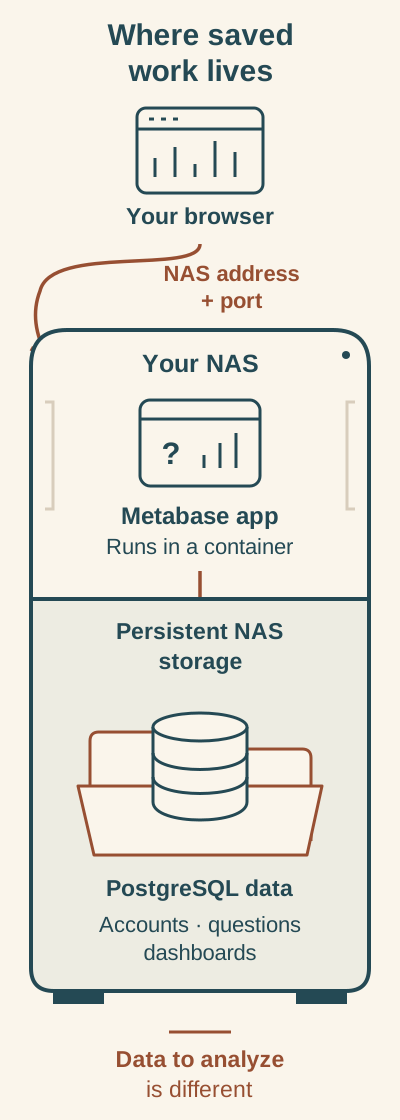
Conceptual layout: Metabase runs on the NAS, while persistent PostgreSQL data holds accounts, saved questions, and dashboards. A database you connect to analyze has a different role.
Open Metabase using your NAS’s local address and the selected host port. Its application database stores accounts, saved questions, and dashboards; the guide keeps PostgreSQL data in a persistent NAS folder. A database you connect for analysis has a separate role, and its location is not specified by this diagram. Reopen a saved sample question after restarting the project to check persistence. This check does not prove that a backup can be restored.
3. Prepare the configuration
Generate a unique random 32-character password containing only letters and numbers in a password manager. You will use the same value in two places below. Restrict access to the project folder and its backups to administrators: the YAML file contains this password. Keep it out of public screenshots and shared messages.
There are three separate credentials to keep straight: your DSM login manages the NAS; the password in this file connects Metabase to PostgreSQL; the Metabase administrator login you create later opens the application. Do not substitute one for another.
Make these replacements before creating the project:
- Replace both
CHANGE_ME_DB_PASSWORDvalues with the same generated password. - Replace
192.168.1.50with your NAS’s private LAN IP address from Info Center. - Replace
/volume1/docker/metabase/dbwith the actual absolute path to your emptydbfolder, if different.
Keep the indentation and quotes. YAML uses indentation to group settings.
services:
  db:
    image: postgres:18.6
    restart: unless-stopped
    environment:
      POSTGRES_DB: metabase
      POSTGRES_USER: metabase
      POSTGRES_PASSWORD: 'CHANGE_ME_DB_PASSWORD'
    volumes:
      - /volume1/docker/metabase/db:/var/lib/postgresql
    healthcheck:
      test: ['CMD-SHELL', 'pg_isready -U metabase -d metabase']
      interval: 10s
      timeout: 5s
      retries: 10

  metabase:
    image: metabase/metabase:v0.65.3
    restart: unless-stopped
    ports:
      - '192.168.1.50:6400:3000'
    environment:
      MB_DB_TYPE: postgres
      MB_DB_DBNAME: metabase
      MB_DB_PORT: '5432'
      MB_DB_USER: metabase
      MB_DB_PASS: 'CHANGE_ME_DB_PASSWORD'
      MB_DB_HOST: db
    depends_on:
      db:
        condition: service_healthy
This configuration uses the documented tags above, rather than a moving latest tag. They are dated choices, not a promise of the newest release when you read this.
An environment variable is a named setting passed to an application. Here is how the settings fit together:
| Setting | What it does |
|---|---|
POSTGRES_DB, POSTGRES_USER, POSTGRES_PASSWORD | Create the application database and its login when the database folder is empty. |
MB_DB_TYPE | Tells Metabase to store its application data in PostgreSQL. |
MB_DB_DBNAME, MB_DB_USER, MB_DB_PASS | Tell Metabase which database and credentials to use; they match the PostgreSQL settings. |
MB_DB_HOST: db | Reaches the database by its service name on the Project’s container network. |
MB_DB_PORT: '5432' | Uses PostgreSQL’s port inside that network; it is not published as a NAS port. |
The PostgreSQL settings initialize an empty database. Changing the password text later does not rotate an existing database password. Keep the original matching credentials.
A port is the number that selects an application at an address. In 192.168.1.50:6400:3000, the first value is your NAS address, 6400 is the NAS-side web port, and 3000 is Metabase’s internal container port. Keep 3000 and database port 5432 unchanged. PostgreSQL has no published host port in this configuration.
For PostgreSQL 18, the mount target is /var/lib/postgresql. Replace only the NAS-side path to the left of the colon. Do not copy an older PostgreSQL version’s storage mapping into this configuration. The health check waits for database readiness; it does not prove Metabase has finished starting.
4. Create and start the Project
Open Container Manager → Project → Create and enter the following:
- Project Name:
metabase. - Path: the
metabasefolder you created, not itsdbsubfolder. - Source: choose to create
docker-compose.ymlwith the editor, then paste your edited YAML. - Leave the optional Web Station portal off.
- Check the summary, select Done, and choose to start the project.
Open the project’s details and inspect Containers. If deployment fails or a container keeps failing, read its reported error and startup logs before changing the configuration. Do not use Clean or Delete to retry a startup: those are destructive actions, unlike Stop and Start.
5. Open Metabase and save your first question
From a computer on your trusted home network, open this address in a browser:
http://YOUR_NAS_PRIVATE_IP:6400
For the illustrative NAS address 192.168.1.50, that becomes http://192.168.1.50:6400. Use your own address. This is local HTTP access, which is unencrypted. Binding to the NAS address does not limit access to a particular person or computer that can reach it. Keep this setup on your trusted network; do not add router port forwarding. A domain, public reverse proxy, certificate and SMTP setup are outside this guide.
When the welcome screen is ready, complete setup and create your Metabase administrator account. The first account is an administrator. These are the credentials you will use in the browser; the PostgreSQL password stays in the project configuration.
Choose I’ll add my data later when asked for your data. Use Sample Database for your first question. Do not add the internal PostgreSQL application database as a business data source.
- Select + New → Question to open a new question.
- Select Sample Database as its data source and choose a table. For this exercise, keep the results as a table; no particular sample table or chart fields are required.
- Save the question with a recognizable name, such as My first NAS question, and choose a collection to hold it. A collection is the place you will return to for this saved question. Note the name and chosen collection.
- Return to that collection and reopen the named question before continuing with the restart check.
6. Check that a restart preserves your work
In Container Manager, select the project and use Action → Restart. After it starts again, return to the same browser address, sign in with the same account and reopen your saved question.
If the question is present, you have checked persistence across that restart. You have not tested recovery from a failed disk or proven that a backup works. The stored application database is in the configured db folder; protect it before recreating or removing the project.
If an established installation unexpectedly shows a fresh setup screen, stop and check the original database path and configuration before creating another account. Do not delete db to troubleshoot missing work.
After setup: protect your saved work
The saved question and restart check are your installation finish line. The next steps prepare you to keep that work through maintenance and recovery.
Back up the stopped database
A cold backup copies the complete database cluster while PostgreSQL is stopped. A normal copy of live db files is not a valid database backup. Use a DSM backup tool configured to preserve the complete folder, ownership and permissions; keep the original until you have checked a restoration.
- Select Project → Action → Stop. In the project’s Containers details, confirm that both containers have stopped.
- Back up the whole
metabasefolder, includingdbanddocker-compose.yml, to a separately protected backup destination. Do not copy only selected database files. - Record the two exact image tags, original NAS path and Metabase administrator credentials separately. Protect the backup because its YAML contains the database password.
- After the backup completes, use Action → Start and reopen your saved question.
This backs up the Metabase application and its saved work. It does not back up data held on other database servers you connect for analysis.
Restore at the original path
Stop the project and confirm both containers have stopped. Preserve the current whole project folder separately before replacing anything, even if the installation is failing. Keep PostgreSQL stopped throughout the replacement.
If you use Hyper Backup, open Backup Explorer, choose the backup version and folder, and use Restore for the complete folder. Copy to and Download do not preserve the original privileges. Restore the complete backed-up db directory and its matching YAML to their original paths, including ownership and permissions. Replace the database directory as a whole: do not merge files from different database copies. Use the same PostgreSQL version and the Metabase image version recorded with that backup.
Start the project, log in, and reopen the saved question. If database permissions prevent startup, stop again and restore the folder metadata through the backup tool; do not grant everyone write access. If you must use another volume, update only the NAS-side mount path to match the restored folder before deploying.
To check a backup before depending on it, restore a copy into a separate project folder with its own database path and a different NAS-side web port. Stop the original project during the check to avoid confusing the two installations. Verify the restored login and saved question. This is a reader acceptance check, not a restoration performed for this article.
Update Metabase with a way back
Before updating, choose a new exact Metabase image tag from the official release/image page, read its upgrade notes and complete the stopped backup above. Record the old versions. Keep PostgreSQL unchanged during this application update.
In the project’s YAML Configurations, change only the metabase/metabase image tag and deploy the changed configuration. A plain Restart does not replace an image. After the update, sign in and reopen your saved question.
If you need to undo the update, stop the project and preserve the failed state separately. Restore the pre-update application database and its matching YAML, then redeploy the previous Metabase version. Changing only the image tag back is insufficient when the new version has migrated the application database. Do not start the old Metabase version against that migrated database.
A PostgreSQL major-version change needs a separate database migration plan. Do not change postgres:18.6 to another major version as part of a routine Metabase update.
If something does not work
| What you encounter | What to check first |
|---|---|
| No Container Manager Project screen | Recheck model, DSM and package support; stop if the required route is unavailable. |
| YAML is rejected | Check indentation, the two password replacements, the real NAS IP and the absolute folder path. |
| No matching image manifest | The chosen tag does not match the NAS architecture; stop instead of forcing deployment. |
| Address already in use | Change only NAS-side port 6400 to an unused port, redeploy, and use the new port in your browser address. |
| The configured address is unavailable | Replace the illustrative IP with the current NAS IP from Info Center. |
| Browser cannot connect | Check the trusted LAN connection, actual IP, http:// and port; inspect container status and startup logs. Do not open router ports as a remedy. |
| Metabase cannot reach PostgreSQL | Check that db is healthy, MB_DB_HOST is db, and database name and credentials agree. Changing POSTGRES_PASSWORD after initialization does not change the stored password. Recover the matching credentials; keep the database folder. |
| Permission error after restoration | Restore the correct folder ownership and permissions through your backup tool; avoid blanket write permissions. |
Take the installation offline without losing saved work
For a reversible removal, Stop the Project and retain the whole project folder and backup. This takes the application offline without requiring Clean or Delete.
Before permanent removal, check that you have a restorable backup and read the exact DSM confirmation. Retain the database folder and backup while removing the application. Delete stored database files only when you intentionally want to discard the accounts, questions and dashboards they contain.
Official instructions behind this guide
For the graphical deployment route, see Synology Container Manager Projects and Info Center. Image and database details come from Metabase’s Docker guide, the official PostgreSQL image and Metabase’s application-database guide.
For the first question, see Metabase’s question introduction. For maintenance, use PostgreSQL file-system backups, Hyper Backup restoration and Metabase upgrades.