

Recover one file from Synology Hyper Backup without overwriting it
Open a saved Hyper Backup version, download or copy one file to a separate location, and verify it before attempting a restore.
Eugene Gavrilov
3 min read- NAS & storage
You need yesterday's copy of a document, and today's copy is still on the NAS. Use Backup Explorer to retrieve the older file into a separate location. Once it opens and you know it is the right version, decide whether to replace the current file.
Choose the action before opening the backup
| Action | Where the file goes | What to check |
|---|---|---|
| Download in DSM Backup Explorer | To your computer | Pick a separate location. Original NAS permission settings are not carried over. |
| Copy to in DSM Backup Explorer | To the NAS folder you select | Use a dedicated empty recovery folder. Check permissions on the copy before relying on it. |
| Restore from the existing task | Back to the original path | Existing files can be overwritten. Preserve the working copy and check the destination first. |
If the backup is encrypted, have the password or recovery key available. Keep the archive and the original file intact while you inspect the backup.
Download a copy from an existing task
- In Hyper Backup, select the task and open Backup Explorer.
- Select a completed backup from when the file had the contents you need. Browse to the original folder and select the file.
- Choose Download and save it to a separate location on your computer. If you use Copy to instead, select a dedicated recovery folder on the NAS.
- Open the recovered file. Check its contents and record which backup version it came from before using it in place of the current file.
If the task is missing but you can reach the .hbk repository in File Station, use Open Backup Explorer from its context menu if available. Synology documents this route with Hyper Backup or Hyper Backup Vault installed. Choose a completed version and retrieve the file as a copy.
Open a local archive on a computer
If you have access to the repository on a computer, Synology provides Hyper Backup Explorer in its Download Center under desktop utilities for supported devices. Open the .hbk repository in the utility. Select the saved version, browse to the file or folder, then use Copy to to save it to a separate folder on the computer.
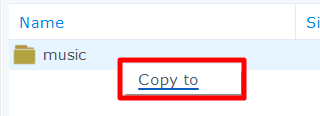
Synology's desktop Explorer example. Huncode cropped the view and underlined Copy to. This menu is from the desktop utility; the same label in DSM Backup Explorer copies to a NAS path.
If you need the original path or permissions
Keep a verified copy of the current files before using Restore. Check the exact paths and version in the confirmation, and stop if you cannot tell what will be overwritten. For an application, a single recovered file does not verify that its database, configuration and ownership can be restored together. Follow that application's recovery procedure in an isolated environment.
For an initial backup and a sample-file check, see the Hyper Backup walkthrough. A readable sample confirms you can retrieve that file from that version.
Sources: Synology’s file recovery from an HBK repository and desktop Explorer guide. The screenshot is from the desktop guide and is used with permission.