

How to Install MeTube on a Synology NAS
Set up MeTube on Synology with Container Manager, open it locally, find a permitted download, and check that the file stays after a restart.
Eugene Gavrilov
13 min read- NAS & storage
Your first goal is a working MeTube page and a download you can find in File Station. This guide takes you through a local setup, one permitted download, and a check that the file stays in place when the app restarts. These are checks for you to perform; this guide does not claim a tested installation on NAS hardware.
MeTube gives you a browser interface for yt-dlp, the software that retrieves the media. Downloads go to the machine running MeTube—in this case, your NAS.
By the end, you should be able to:
- Open MeTube using your NAS's local address.
- Find one video you own or have permission to download in File Station.
- Restart MeTube, reopen its page, and find that same file again.
This route is for NAS owners who already have a docker shared folder prepared. It covers MeTube setup inside that folder, not first-time shared-folder preparation. Before installing or configuring anything, check File Station for that shared folder. If it is absent, stop here; prepare it with appropriate Synology guidance before using this route.
1. Check that your NAS has the required package
DSM means DiskStation Manager, the operating system on your Synology NAS. This procedure uses DSM 7.2 or later, Synology’s Container Manager package, and its Project page. It does not establish compatibility for every NAS model. Use an administrator DSM session while connected to a trusted home network.
In DSM, open Control Panel → Info Center → General and record your model name and installed DSM version. Synology’s version-check instructions show this route. Continue with this guide only if the installed version is DSM 7.2 or later and the package checks below pass.
Open Package Center and look for Container Manager. Install it if offered, then open it and check for Project. If the package or Project page is unavailable, stop here and consult Synology's help for your model and DSM version; the following steps depend on that interface.
MeTube has no built-in login. This setup is intended for a trusted local network. Do not forward its port through your router or make this installation public. Binding it to a local address does not add authentication or make it private from other people who can reach that address.
2. Record the NAS address and choose a download folder
First, find the NAS's local IP address. An IP address identifies a device on the network; a port identifies a service at that address. In DSM, open Control Panel → Network → Network Interface and record the IPv4 address of the connected LAN interface. This guide uses 192.168.1.50 as an example. Replace it with your actual address wherever it appears.
You do not need a domain name for this setup. The local page will use HTTP, which does not encrypt traffic. HTTPS would encrypt the connection, but would not itself add a MeTube login.
Next, choose where files will live. A container is a running instance of an app's software template, called an image. We will connect a NAS folder to the container so you can find its files outside the app. This connection is called a folder mount: the NAS and the app see the same files through different paths. MeTube can modify or delete files in that mounted folder, so use a new, dedicated folder.
- In File Station, check that a
dockershared folder already exists, then open it. Its existence is a prerequisite for this route. If it is absent, stop here: this guide does not cover preparing the shared folder. Obtain model-appropriate help from Synology before returning to this step; do not substitute an unrelated folder. - Create a folder named
metube, then create adownloadsfolder inside it. - Open each folder’s Properties → General and copy its Location folder path. Record that full NAS path. The project folder example is
/volume1/docker/metube; the download folder example is/volume1/docker/metube/downloads. Your volume or path may differ. Use the paths you actually recorded.
The project folder will hold the setup configuration. The downloads folder will contain downloaded files and MeTube's hidden .metube state directory. Keep that hidden directory in mind when making backups later.
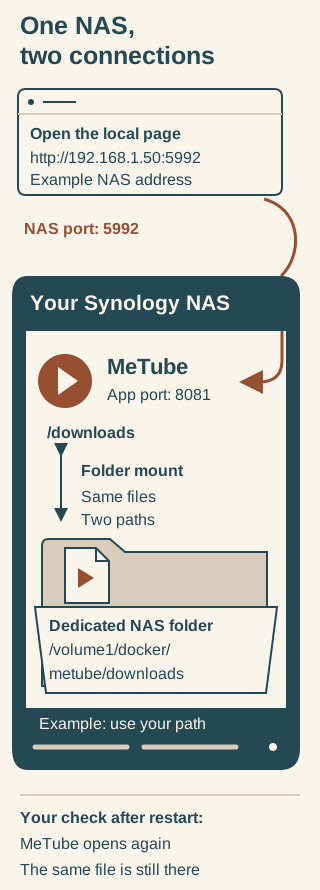
Explanatory infographic: open MeTube through the NAS port; use the folder mapping to find the same saved files. The address and NAS path are examples.
The example local address is http://192.168.1.50:5992; NAS port 5992 maps to MeTube port 8081. MeTube’s /downloads path maps to /volume1/docker/metube/downloads on the NAS. Replace the example NAS address and NAS path with your recorded values. After restarting, check that MeTube opens and the earlier file remains in File Station.
3. Give MeTube permission to write to the new folder
This graphical procedure follows Synology’s mapped-folder guidance and uses a permissions compromise: it allows Everyone to read and write the dedicated downloads folder. That also gives other NAS users access; a separate folder does not make these files private. If you need access restricted to specific users, stop here and arrange a suitable container identity and permission configuration before continuing.
Apply the following only to the fresh downloads folder. Do not apply it to the whole docker shared folder or a folder containing unrelated files.
- Open the
downloadsfolder's Properties → Permission → Create. - Select Everyone as the permission recipient, choose Allow, and enable Read and Write permissions.
- Apply the permission to this folder and its descendants, then use Done/Save to save it.
The configuration below runs MeTube with its explicit default numeric user and group values, 1000 and 1000. These numbers are not a claim about your DSM login. It also disables startup ownership changes; the folder permissions you just set provide write access. You do not need to discover your DSM account's numeric ID for this particular procedure.
4. Create the MeTube project
A Compose configuration is a text document describing the app's image, settings, network connection, and folders. Container Manager uses it to build the project.
Follow Synology’s Project instructions: open Container Manager → Project → Create. Enter metube as the project name and choose your actual metube project folder for Path. For the source, choose the option to create the Compose configuration using the editor.
Before pasting the example, replace these two values:
192.168.1.50with the NAS LAN address you recorded./volume1/docker/metube/downloadswith the full path of your newdownloadsfolder.
Keep the indentation and quotation marks. The sample uses port 5992 on your NAS and port 8081 inside MeTube.
services:
  metube:
    image: ghcr.io/alexta69/metube:latest
    restart: unless-stopped
    ports:
      - "192.168.1.50:5992:8081"
    environment:
      PUID: "1000"
      PGID: "1000"
      CHOWN_DIRS: "false"
    volumes:
      - /volume1/docker/metube/downloads:/downloads
Here is what every part means:
servicesstarts the list of apps in the configuration.metubenames this app within that list.imageselects MeTube's official image repository.:latestis a moving label: the image it points to can change when the project releases updates. It does not mean your existing container automatically runs the newest software.restart: unless-stoppedasks the container system to restart the app after an interruption, while respecting a deliberate stop.portsconnects the browser-facing address to the app. Read the quoted value as NAS IP address : NAS port : app port.5992is the NAS-side port you will type in your browser;8081is MeTube's internal port. If5992is already in use, choose a free NAS-side port and use that same replacement in your browser address. Keep the app-side8081.environmentsupplies app settings.PUIDandPGIDselect the numeric user and group under which MeTube works. We explicitly use its defaults,1000and1000.CHOWN_DIRS: "false"prevents MeTube from changing folder ownership at startup, so the permission granted in the previous section must already allow access.volumesconnects storage. The path before the colon is your real NAS folder;/downloadsafter it is the path MeTube sees inside the container. Both refer to the same saved files. Keep/downloadson the right; change the left side to match your NAS.
Leave the optional Web Station portal disabled for this setup. Review the summary, select Done, and choose to start the project. If it has not started, the documented project operations include Build followed by Start. Check that the project is running before moving on.
5. Open MeTube on your local network
In a browser on your trusted network, type the address below into the address bar. Replace the example IP with your NAS address; if you changed the NAS-side port, replace 5992 too.
http://192.168.1.50:5992
The port mapping sends requests arriving at that NAS address and port to MeTube on 8081. Opening the page checks network access; it does not yet prove that the app can save a file.
6. Download one permitted video and find the file
Use a short video that you own or have explicit permission to download. For example, use a short clip you created and uploaded yourself. This is your first functional check, so begin with one URL.
- Paste the video’s URL—its web address—into MeTube.
- Choose a format and quality. Format determines the requested output type; quality selects the requested quality. Availability depends on the source, so these choices do not promise that every selection will work.
- Submit the download. The documented 2025 interface uses an Add button; the current interface may differ. Wait for MeTube to report completion.
- Open File Station, browse to your actual
docker/metube/downloadsfolder, and locate the downloaded file. Confirm the file is present there, not just that the browser shows a completed job.
If the download fails or the file is absent, use the matching checks below before trying more URLs.
7. Restart MeTube and check persistence
Now check the result you wanted from the folder mount: the file stays available when the app restarts.
- In Container Manager → Project, select the MeTube project and use Action → Restart.
- Reopen your local MeTube address and check that the page returns.
- Return to the same
downloadsfolder in File Station and confirm that your earlier file is still there.
A mounted folder stores files on the NAS separately from the container; restarting the app should not remove those files. The app still has write access to that folder, so persistence is not a substitute for a backup.
If the page reopens and the earlier file remains, your initial installation checks are complete.
8. Back up, update, or undo the installation
Make a recovery copy first
Before an update or removal, Stop the project, then preserve both its configuration and its complete download folder. Keep the copies outside the project folder.
- In Container Manager, open the MeTube Project → Details → YAML Configurations editor. Select and copy the complete configuration text into a plain-text editor on your computer. Save it outside the project as a file ending in
.yml, for examplemetube-before-update.yml. This is an unchanged backup copy: do not edit or deploy the project while making it. - In File Station, select the whole
downloadsfolder, then choose Action → Copy. Go to a fresh backup destination outside the project folder and use the available Paste option. Copy the parent folder itself, rather than opening it and selecting only the visible files. Copy/Paste labels may vary across Synology products and versions. - Open the copied folder and check for your sample file. MeTube also stores hidden state in
.metube, so a backup of visible videos alone is incomplete. If.metubeis visible in the copy, inspect it too. This guide has no verified Synology control for revealing hidden files and cannot certify that hidden state has been copied. If you cannot check it, retain the original folder and seek help before updating, using Clean/Delete, or removing data. Do not regard the backup as verified merely because the visible video is present.
If you pause here to obtain help, use Start on the existing project and reopen its local page to return your current installation to service.
In Container Manager's image view, record the existing image's Details and use Export to retain a copy of that image. Keep this together with the pre-update configuration and files.
Update with the available package controls
Synology’s image help documents an image Action → Update operation and an Update available indicator. If an update is offered, review the affected containers and the package's update instructions before proceeding. Installing a new image requires deploying or recreating the app with it; Restart alone does not install a new image.
There is a documentation limit here: the available primary guidance does not establish that every Container Manager version detects and redeploys updates for this GHCR image. If no update is offered, consult your installed package’s help and MeTube’s official project documentation. Do not take the latest label or a successful restart as proof that you are current.
After a new image is deployed, repeat the permitted-download and restart checks above.
If no update is available, or you decide not to proceed after the backup, select the existing MeTube project and use Start. Reopen its local address and check that the page works before leaving the project. Starting the existing project returns it to service; it does not install an update.
If an update fails, stop the app and preserve your old image and pre-update files. Review compatibility before restoring the old image and state together. This guide does not establish a one-click or guaranteed rollback procedure.
Stop or remove MeTube
To stop running MeTube, select the project and use Stop.
Before using Clean or Delete, make the recovery copy described above and read the confirmation carefully. Synology describes Clean as removing Compose resources and Delete as removing project data. Do not assume files inside the project folder will survive either operation.
Deleting your saved download folder is a separate, deliberate choice: it removes the files you kept there, including state if .metube is included. Only do that when you want those files removed and have preserved anything you need.
If something does not work
Container Manager or Project is unavailable
Check Package Center and your NAS's model/DSM guidance. This procedure requires the package and Project interface; if either is absent, stop this installation route and consult Synology’s official Project help.
The project will not start
Inspect the affected container's logs using the controls available in your Container Manager version. An image-fetch error calls for a NAS connectivity and DNS check; a port-in-use error calls for a free NAS-side port. DNS is the system that turns server names into IP addresses. Change only the NAS-side port in the mapping and then use the same port in the browser URL. If you cannot locate the logs or resolve the error, stop troubleshooting here and ask in MeTube’s Discussions. Include your software version and any redacted error you can obtain; omit personal URLs and cookies.
The MeTube page does not open
Confirm that the project is running, that you are on the trusted local network, and that the browser address uses the connected LAN IPv4 address and the NAS-side port from your configuration. If any value differs, correct it and try the page again. Do not solve local access trouble by opening a router port.
One video fails to download
Read the reported error and consult MeTube’s official README and its linked troubleshooting guidance. An individual rejected URL does not establish that the NAS installation failed. When asking for help in the project’s Discussions, include the software version and a redacted error; exclude personal URLs and cookies.
The file is missing or MeTube reports permission denied
Check that the left side of volumes names the folder you are inspecting in File Station and the right side is /downloads. Check the dedicated folder's read/write permission and descendant scope from section 3. A permission error is a reason to inspect that mapping and scoped permission—not to broaden access across unrelated NAS folders. Retry your single permitted sample and check for the resulting file.