

How to install SABnzbd on a Synology NAS
Install SABnzbd with Synology Container Manager, set up persistent folders and local access, then check saved settings and learn how to remove it carefully.
Eugene Gavrilov
8 min read- NAS & storage
Get SABnzbd running on your home network with its settings and downloads in named NAS folders. Before relying on the setup, check that your saved settings survive a container restart.
This procedure uses Container Manager’s Project interface. It follows documented behavior; no physical NAS validation was performed.
SABnzbd accepts NZB job files and retrieves their contents from a Usenet server. Installation alone does not provide a Usenet account or downloadable content. Prepare your provider's server address, login, TLS/SSL setting, port and connection limit.
Before you start
Check DSM's version in Control Panel > Info Center, then install Container Manager from Package Center if available for your model. This procedure requires its Project page; older Docker interfaces are outside scope. The LinuxServer image supports x86-64 and ARM64, not every Synology model.
An image is the application package; a container is its running instance. Compose is a text recipe describing that instance. A mapped folder connects a NAS directory to a path inside the container, keeping that data outside the disposable application. Environment variables provide startup settings.
Find the NAS’s local IP address in DSM’s network settings. Synology documents Control Panel > Network > Network Interface in its DSM 6 help; use the equivalent interface information if your DSM labels differ. In an illustrative address such as http://192.168.1.50:8775, the IP identifies the NAS and port 8775 selects this application. This address opens SABnzbd separately from your DSM login page.
A hostname is a readable device name; a public domain, DDNS name and HTTPS certificate are unnecessary for this local setup. HTTP is unencrypted: use a trusted home network. Do not forward this port on the router. Publishing a container port does not itself restrict access to the home network.
Prepare the folders and file-owning account
The folder-preparation route below is supported by the original installation guide rather than a new NAS test; labels may differ in your DSM version.
In File Station, create docker/sabnzbd and inside it config, downloads, and incomplete-downloads. If the docker shared folder does not exist, create it in Control Panel > Shared Folder. Check the folder's Properties for its full location: /volume1 in the recipe below is an example, not a universal NAS path.
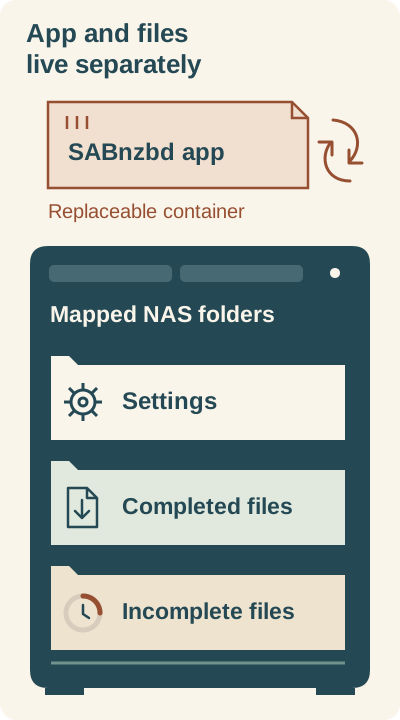
The container runs the app; mapped NAS folders hold settings and files. Before deleting a project, stop it and copy the data you want to keep outside its project directory.
In this guide, /volume1/docker/sabnzbd/config maps to /config, downloads maps to /downloads, and incomplete-downloads maps to /incomplete-downloads. The last two NAS folders are also under /volume1/docker/sabnzbd; use your actual volume path. These folders sit outside the app container, but keeping them is not a backup: copy wanted data outside the project directory before Project Delete.
Choose the DSM user that will own these files. Its numeric user and group IDs must match the container's PUID and PGID. Do not assume another guide's 1026 is your ID.
In File Station, repeat these steps for config, downloads and incomplete-downloads:
- Right-click the folder, open Properties, and choose the intended account as Owner on General.
- Under Permission, click Create. Select that same user, choose Allow, and enable Read and Write.
- Set Apply to to include This folder and All descendants, so child files and folders receive this entry.
- Click Done, then Save. Leave existing inherited entries in place; do not reset permissions for the whole
dockershare. - Reopen each folder’s Permission list and confirm the intended user’s Allow entry includes Read and Write.
If a deny or share-level restriction prevents access, follow Synology’s permission troubleshooting before starting the container. A visible Allow entry alone does not cancel other restrictions.
To retrieve IDs without SSH, use a one-off Task Scheduler task:
- Open Control Panel > Task Scheduler > Create > Scheduled Task > User-defined script.
- Name it
Read SAB IDs, select the intended file-owning user, and leave Enabled unchecked. - In Task Settings, enter only
id, then save. - In Task Scheduler’s Settings, enable Save output results and choose an output folder you can access.
- Select the task, click Run, then open Action > View Result.
- Record the numbers after
uid=andgid=; ignore the supplementarygroups=list. For illustration,uid=1030(alex) gid=100(users)means PUID1030, PGID100. - Delete the task when finished.
The command reads the selected account’s identity; it does not install anything.
Create the project
Open Container Manager > Project > Create. Set Project Name to sabnzbd, Path to the docker/sabnzbd directory and Source to the option for creating docker-compose.yml in the editor.
In each folder mapping, the left side is the NAS location and the right side is the path inside SABnzbd. The port mapping works similarly: 8775:8080 connects NAS port 8775 to application port 8080.
Paste this recipe, replacing YOUR_UID and YOUR_GID with the digits you just retrieved, and /volume1 with your actual volume if different. These two words are editing instructions, not runnable values. Etc/UTC is a valid timezone; replace it only if you want local timestamps. Keep quotation marks and indentation.
services:
  sabnzbd:
    image: lscr.io/linuxserver/sabnzbd:latest
    container_name: sabnzbd
    environment:
      - PUID=YOUR_UID
      - PGID=YOUR_GID
      - TZ=Etc/UTC
    volumes:
      - /volume1/docker/sabnzbd/config:/config
      - /volume1/docker/sabnzbd/downloads:/downloads
      - /volume1/docker/sabnzbd/incomplete-downloads:/incomplete-downloads
    ports:
      - "8775:8080"
    restart: unless-stopped
/config stores settings, /downloads holds finished files and /incomplete-downloads holds work in progress. latest follows LinuxServer's stable stream and can change on a future pull; it is not a fixed version. unless-stopped is the maintainer's restart policy in its Compose example.
Leave the optional Web Station portal disabled. Confirm the summary, finish the wizard and choose to start the project. Allow time for the image download; inspect the project's container status and log if startup fails.
Open and configure
On a computer on the same trusted network, open http://NAS-IP:8775, substituting the NAS's actual IP. Complete the initial wizard with your Usenet provider's details and use its server connection test. The provider's TLS protects the news-server connection; it is separate from HTTPS for the browser interface. Use the provider's documented port and connection limit.
In SABnzbd's Folders configuration, set Temporary Download Folder to /incomplete-downloads and Completed Download Folder to /downloads, then save. Enter container paths here, not /volume1/.... In General's security settings, set a separate SABnzbd username and strong password; preserve the API key privately. Keep external internet access disabled.
Check that your settings persist
Record the two saved folder values. In Container Manager select the project and choose Action > Restart. Reopen the same local URL and confirm those values remain saved. In File Station open docker/sabnzbd/config and confirm configuration files exist. This checks settings persistence; it does not prove a download or backup works.
For an end-to-end check, add a small NZB for material you are authorized to download. Wait for completion, then find its output in docker/sabnzbd/downloads using File Station. Restart the project again and verify the file remains present. If no provider or suitable NZB is available, defer this check rather than treating the opening web page as proof of download success.
Update, remove or recover the installation
Before an update, stop the project and copy config, your Compose recipe and any downloads you want to keep to a separate backup destination. A tag such as latest is a label that can move to another image. A digest beginning sha256: identifies particular image content. Saving only latest cannot identify your previous image. Before pulling an update, record the current image identity; Docker’s image-inspection reference documents how to inspect a local image. If your installed Container Manager does not show a digest, use that reference or obtain help before relying on an image rollback.
LinuxServer updates require a new image and container recreation; restarting alone does not fetch an update. Consult LinuxServer’s update instructions and your installed Container Manager’s help for the recreate workflow. For reproducibility, replace latest with an actual published version tag or digest that you have recorded, not a guessed release number.
To undo installation, stop the project. Copy retained files outside its project directory before deleting anything: Synology describes Project > Delete as deleting project containers and data. After verifying your separate copies, delete the project and remove the old docker/sabnzbd folder only if its contents are no longer needed. A persistent folder is not a backup. For recovery, stop the container, restore the saved config to the same mapping and permissions and recreate with the recorded image; restoration across versions is not guaranteed by this guide.
If something does not work
Container Manager or Project is unavailable: check your model and DSM version. This procedure needs the Project interface; image architecture support alone does not establish package availability.
The project fails to start: check the edited UID/GID values, recipe indentation and actual NAS folder paths. Inspect the container log. For permission errors, check the file-owning user’s folder access and numeric IDs.
The local page will not open: check the NAS IP, container status and chosen NAS-side port. If the log reports an occupied port, change only the left side of 8775:8080, for example to 8776:8080, and use :8776 in the browser address.
The page opens but a download fails: repeat the provider’s server test, check its credentials and limits, then check available NAS storage, folder settings and write permissions.
Saved settings disappear after restart: recheck that /config maps to your prepared NAS folder and that the selected user can write there. Repeat the saved-setting check after correcting the configuration.
Keep the local URL and mapped NAS paths with your Compose recipe. For app help, use the SABnzbd wiki; for image-specific help, use LinuxServer’s documentation. Share sanitized logs and image/DSM versions, never provider passwords or API keys.