

Check one Synology container with Watchtower and Task Scheduler
Run a manual, monitor-only Watchtower check for one Synology container. Understand Docker socket access, inspect task output and plan updates carefully.
Eugene Gavrilov
6 min read- NAS & storage
Use DSM Task Scheduler to check whether one NAS application has a newer container image available. The task launches Watchtower to check your selected container, report what it finds and exit. The first run below uses monitor-only mode; it does not replace the application container or install an ongoing automatic updater.
Allow time to read the command and inspect its output. This procedure is based on documentation; no physical NAS installation or restore test was performed for this guide.
Understand the connection before you create it
The Docker security guide explains why access to the Docker daemon requires trust.
An image is the packaged application used to create a container. A container is an instance created from that image. Watchtower checks for image changes and, in its update mode, can replace containers with updated versions. We begin with observation so you can review the result before choosing an update procedure.
Watchtower connects through /var/run/docker.sock, Docker's local management socket. This gives the checker powerful control over Docker and potentially the NAS host. Trust the image publisher as you would other administrative software. Selecting one application limits what Watchtower is instructed to monitor; it does not reduce the authority granted by the socket. Monitor-only also leaves that authority in place.
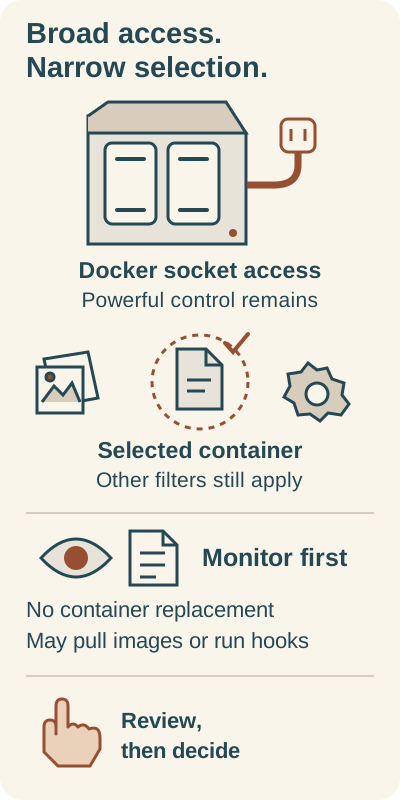
Container selection narrows Watchtower's instructions, not its Docker authority. Monitor-only avoids container replacement; it may still pull images or run hooks.
The socket retains powerful Docker access even with one selected container. Other selection filters apply. Monitor-only does not replace application containers, but image downloads and configured hooks can still occur. Review the result before choosing an update procedure.
You do not need a Watchtower website address, router port forwarding or a new application-data folder for this command. Its only mapped path is the Docker socket, which is a control connection, not a backup location.
Pick a suitable first application
See the fork’s container selection documentation for name and label filters and its project README for compatibility scope.
Use a NAS with Container Manager installed and an existing, running, nonessential container. These instructions target DSM 7 Task Scheduler; Container Manager references follow Synology's DSM 7.2 documentation. The current Watchtower fork states testing with Docker API v1.43 and higher. That is not certification for every Synology model or older Docker package: resolve compatibility errors before continuing.
In Container Manager, record the application's exact container name, image reference and persistent-data locations. Keep critical services and databases on a manual update process until you understand their backup and recovery requirements. If another Watchtower instance already runs, review it first: its automation can act independently of this check.
The example target is nas-demo. Replace it with your container's name. The command uses the anchored expression ^nas-demo$ to match that complete name. Name selection uses regular expressions, so a name containing punctuation such as a dot needs appropriate escaping. Do not remove the target expression to fix an empty result.
This recipe also sets --scope none explicitly. It selects unscoped containers: those with no scope label, an empty scope value or the value none. A named target can still be skipped if it is stopped, has enable=false, or belongs to a nonempty named scope.
Save a manual task
The task controls follow Synology’s DSM Task Scheduler help. The root choice comes from the original Synology recipe.
Open Control Panel > Task Scheduler > Create > Scheduled Task > User-defined script. In General, name the task Watchtower Check One Container, choose root, and leave Enabled cleared. You will launch the saved task manually. Root follows the supplied Synology recipe; it has not been independently tested on a NAS for this guide.
Under Schedule, select a single date without repetition. Under Task Settings, paste this script, replacing the target expression before saving. Review the complete script because the root account executes it with administrator privileges.
docker run --rm \
  --name watchtower-check \
  -v /var/run/docker.sock:/var/run/docker.sock \
  nickfedor/watchtower:latest \
  --monitor-only --run-once --scope none '^nas-demo$'
The image belongs to the Nicholas Fedor Watchtower fork. Its installation documentation uses nickfedor/watchtower:latest. That tag moves; it does not pin a release. The documentation checked November 4, 2026 identifies v1.23.2, but a corresponding registry version tag was not independently verified. Verify a published tag or digest before substituting a fixed release.
The fork documents update behavior and one-shot scheduling; Docker documents the run options. Each option has a separate purpose:
--rmremoves the temporary checker container after it exits.--name watchtower-checkgives that checker a recognizable name.-vconnects the Docker socket.--monitor-onlyprevents application-container updates, although image downloads and configured lifecycle hooks can still occur.--run-onceperforms one pass and exits. There is no restart policy or ongoing background process in this recipe.- The scope and final expression narrow the intended selection; the other filters still apply.
There is no --cleanup. That separate Watchtower option removes old images after updates. Omitting it retains more local recovery options, but an old image alone is not a data backup or a rollback guarantee.
Run it and inspect the evidence
For the container status and log locations, consult Synology’s Container Manager troubleshooting guide.
In Task Scheduler Settings, enable Save output results and choose a folder. Save the task, select it and click Run. Open Action > View Result to read the output. Initial image downloads and registry access can take time.
Check that the output describes the intended target and that the check completed without an error. If no container is selected, that does not prove your application is current. Compare its name, running state, enable label and scope with the command. A new-image report identifies something to review; it does not establish that installing it is safe.
After completion, watchtower-check should disappear because of --rm. Open your application's usual local address and perform a familiar action to check that it still works. If something looks wrong, inspect Container Manager > Container > Details and Log. The expected monitor-only outcome is that Watchtower has not replaced the application container. These are checks for you to perform, not reported test results.
For a socket or permission error, review the root account and exact socket mapping. For a name conflict, inspect the existing watchtower-check before removing anything; a previous run may still be active. Keep the error output when investigating.
Finish the check, then decide about updates
Keep the task disabled and launch it manually for another check. Before updating an application, read its release notes, create an application-consistent backup and preserve its image reference, ports, environment settings and volume mappings. Use its documented update and recovery instructions, especially for databases.
Deleting the task prevents future launches but does not stop a currently running checker. If necessary, stop watchtower-check in Container Manager; --rm removes it on exit. Leave the target application's container and data untouched.
Removing Watchtower is not application rollback. If another updater or a later update run changed an app, recovery requires its known-good image, deployment settings and compatible data as directed by that application's recovery procedure. An older image cannot by itself undo a database migration.