

Check and Run Data Scrubbing on Your Synology NAS
Check Synology data scrubbing requirements, run a scrub in DSM, read the result, and set a repeat schedule with clear pause and recovery guidance.
Eugene Gavrilov
7 min read- NAS & storage
Data scrubbing checks storage consistency and can correct certain inconsistencies. Start by checking which kind of scrubbing your storage supports, then run it on the intended storage pool and record the result. It does not remove duplicate documents or replace a separate backup.
This guide follows Synology’s DSM 7 help, with eligibility information from its DSM 7.4 storage specification. The procedure is based on documentation; we have not performed a physical NAS test.
Understand what the check covers
Before comparing the checks, identify these four storage objects:
- Disk or drive: the physical storage device, such as a hard drive or SSD.
- Storage pool: storage formed from one or more drives.
- Volume: storage space allocated on a pool.
- Shared folder: a directory for files and folders, located on a volume.
The relationship is drives → storage pool → volume → shared folder. This is a conceptual map, not a picture of your NAS or a statement that every layer supports the same check. For this procedure, select the intended pool; the checksum setting is a separate shared-folder check.
RAID describes ways of combining drives into one storage unit; the different types have different capacity, performance and reliability characteristics. SHR means Synology Hybrid RAID, Synology’s system for managing RAID automatically. Match the type shown for your pool to the eligibility list below. You do not need to change the configuration to follow this guide.
Synology distinguishes two checks. Filesystem scrubbing applies to Btrfs, a filesystem used to organize stored data. RAID scrubbing applies to specified storage configurations: SHR with at least three drives, RAID 5, RAID 6 and RAID F1. An ext4 filesystem therefore does not, by itself, rule out RAID scrubbing.
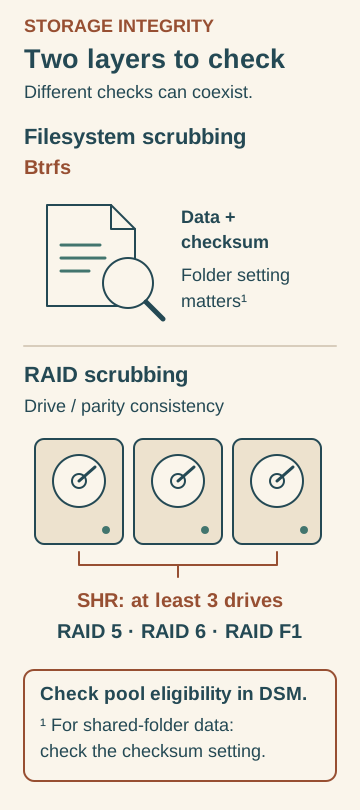
Different checks have different requirements; they can coexist. Original Huncode diagram based on Synology’s DSM 7 help and DSM 7.4 storage specifications. Check pool eligibility and the shared-folder checksum setting separately.
Filesystem scrubbing applies to Btrfs. Verification and repair of shared-folder data require data checksum for advanced data integrity. RAID scrubbing supports SHR with at least three drives, RAID 5, RAID 6 and RAID F1. These checks are not mutually exclusive. Check DSM for pool eligibility; an abnormal pool state can prevent a scrub.
For this task, follow the storage-pool entry in Storage Manager: that is where DSM provides the control to start a scrub. Shared-folder settings matter separately when you want Btrfs data verification and repair.
Establish the requirements before starting.
| Check | What to establish before starting |
|---|---|
| Filesystem scrubbing | The filesystem is Btrfs. For shared-folder data verification and repair, the folder needs data checksum for advanced data integrity. |
| RAID scrubbing | The configuration is SHR with at least three drives, RAID 5, RAID 6 or RAID F1. |
| Pool eligibility | Check DSM’s schedule window for the reason if a pool cannot be selected. An abnormal pool state can prevent a scrub. |
Sources: Synology DSM 7 help and DSM 7.4 storage specifications.
The checksum setting is consequential: without it, scrubbing cannot verify and repair that shared folder’s data through this feature. Checking whether the setting exists is different from enabling it; this guide does not instruct you to change an existing folder’s checksum configuration.
Find the pool and check eligibility
- Open Storage Manager > Storage and select the pool you intend to check. Look for its Data Scrubbing section. The section is unavailable on unsupported pools.
- If the section is missing or the pool is unavailable for scheduling, open Schedule Data Scrubbing and read the reason shown for that pool. DSM can identify filesystem, RAID configuration or abnormal pool state as the reason.
- For shared-folder data verification, inspect Control Panel > Shared Folder > Edit > Advanced for data checksum for advanced data integrity. Record whether the setting is enabled.
If DSM reports that the pool is degraded, pause this procedure and address the pool’s condition first: scheduled scrubbing skips degraded pools until repair. A crashed pool is removed from the schedule. Do not treat an unavailable scrub as an instruction to change your storage configuration.
Prepare before starting
Check that you have a usable separate backup of important files. As a reader check, identify a file you would need to recover and confirm that your backup arrangements let you retrieve it before starting maintenance. Scrubbing and backup serve different purposes.
Allow time for the operation and choose a period when the NAS is less busy. This guide gives no completion-time estimate. MariusHosting’s data-scrubbing article recommends a UPS; this is the author’s advice, not a verified universal requirement for running a scrub.
Before clicking Run Now, note the selected pool and its displayed condition. Keep this record so you can compare the result with the entry you actually started.
Run the scrub and read the result
- In Storage Manager > Storage, select the intended pool. In Data Scrubbing, click Run Now.
- Watch the pool status. Synology documents Running data scrubbing while the operation is active and Healthy after completion. Wait for the operation to end.
- When the operation ends, record the final pool status and any warning displayed. Open a known file as an additional reader check. A file opening successfully is a limited check; it does not establish that every file is intact or that a backup is recoverable.
Your maintenance record can be short: pool selected, date started, final status and any warning that still needs attention. If the final state does not match the documented completion state, save the exact message and any guidance DSM displays. Defer further maintenance until you have addressed the reported condition.
If you need to pause
Expand the pool information under Storage and use Pause data scrubbing. For a scheduled task, use Pause Schedule, then Resume Schedule when ready to continue. A paused schedule needs that explicit resume action.
These controls manage the remaining work. They do not reverse a repair that has already happened. If you need an earlier copy of a file, use your separate backup arrangements; scrubbing is not a rollback mechanism.
Set a repeat schedule you can check
- Open Storage > Schedule Data Scrubbing and select Enable data scrubbing schedule.
- Select the eligible pools and set their order. DSM scrubs only one pool at a time.
- Choose Frequency, then use Set Time Grid to choose less busy periods. Click Save.
- Reopen the schedule, or inspect Overview > Task Schedule, to confirm the planned run.
There is no universal interval established by this guide. MariusHosting’s article suggests six months; treat that as its author’s recommendation, not as a Synology requirement. Choose a plan you can revisit alongside your workload and backup arrangements.
Schedule controls have different consequences.
| Change you want | DSM control and consequence |
|---|---|
| Temporarily stop scheduled work | Use Pause Schedule; use Resume Schedule to resume it. |
| Remove a pool from future runs | Uncheck the pool in the schedule and save. Modifying the schedule cancels an in-progress scrub. |
| Return to an earlier file version | Consult your separate backup arrangements; changing a scrub schedule does not undo completed repairs. |
Source: Synology DSM 7 help for schedule controls; the backup and recovery distinction is editorial guidance.
Finish with three things recorded: whether the pool was eligible, the actual result of the run or reason for deferring it, and the schedule you saved. Keep the separate backup available after maintenance, too.
Documentation
- Synology DSM 7: perform or schedule data scrubbing.
- Synology DSM 7.4 storage management specifications.
- Synology Storage Manager Quick Start Guide: storage objects and RAID basics.
- Synology shared-folder help: shared folders and their volumes.
- Synology Hybrid RAID explanation.