
Synology storage pools, volumes and SHR explained
Identify the drives, RAID type, storage pool, volume and shared folder that hold your data before changing storage or scheduling a scrub.
Eugene Gavrilov
3 min read- NAS & storage
Before adding a shared folder or scheduling a scrub, find out which volume holds your data and which drives back that volume. Start with the existing setup in DSM and record what you find.
Follow a shared folder down to its drives
| Layer | Where to look in DSM | What to record |
|---|---|---|
| Shared folder | Control Panel → Shared Folder | Folder name and its volume |
| Volume | Storage Manager → Storage | Volume number, file system, usage and the pool it belongs to |
| Storage pool | Storage Manager → Storage | RAID type, health and member drives |
| Physical drive | Storage Manager → HDD/SSD | Drive slot and health |
For example, a share on Volume 2 can still use the same physical drives as Volume 1 if both volumes belong to the same pool. To check which volume an app folder uses, follow the DSM folder and path checks.
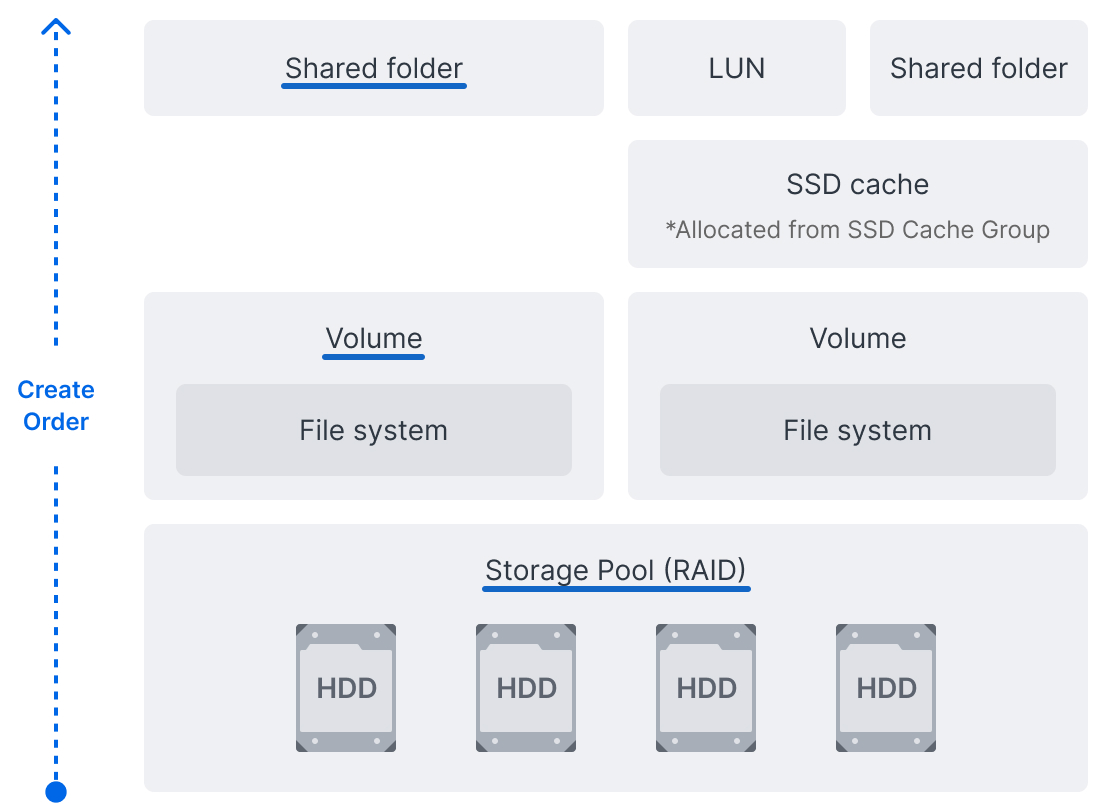
Diagram from Synology’s Storage Manager Quick Start Guide. Huncode cropped the diagram and marked the layers used in this walkthrough.
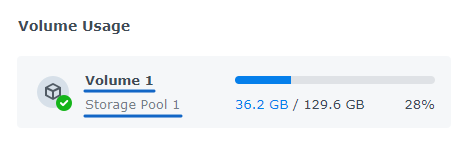
Storage Manager Overview from the DSM 7.2 User Guide. Huncode cropped the example card and underlined the volume and pool names.
Read the SHR configuration
Synology Hybrid RAID organizes compatible drives into a storage pool. On supported models it can make use of mixed drive sizes. With sufficient drives, SHR-1 provides one-drive fault tolerance and SHR-2 provides two-drive fault tolerance. A single-drive SHR pool has no drive redundancy. Read the actual pool type and status in DSM before deciding how to maintain it.
A second volume on the same pool shares the underlying hardware. Keep a separate backup for older file versions and recovery. The Hyper Backup walkthrough includes a check that retrieves a file from a saved version.
Decide which storage control you need
- To store files on an existing volume, create a shared folder and select the intended volume.
- For unused drives in a new DSM setup, Storage Manager can create a storage pool and then a volume. Pool creation erases data on selected drives. Check the drive slots, compatibility and contents before confirming.
- To inspect an existing pool for scrubbing, check its RAID type, volume file system and health, then follow the data scrubbing guide.
- If the pool reports an unexpected degraded or crashed status, preserve the drive order and note the exact status. Contact Synology support for model-specific recovery guidance.
The storage model and interface are based on Synology’s Storage Manager Quick Start Guide and Synology Hybrid RAID explanation. The diagram and the DSM 7.2 User Guide screenshot are used with permission.